Patient Support Team: 0800 083 3060 - Mon-Fri: 8am - 6pm, Sat: 8am - 5pm.

We’ve made it even easier to manage your medication deliveries!
At HealthNet Homecare, we’re always striving to make your healthcare experience smoother, safer, and more connected.
That’s why we’re excited to announce a new round of updates to the Patient Portal and MyHealthNet app, designed to make managing your medication deliveries easier than ever.
A Simpler, Smarter Experience
We’ve listened closely to your feedback and focused on making the digital experience both intuitive and efficient. Whether you’re confirming your next order, checking delivery progress, or updating your details, the new features are all about saving you time and effort.
Here’s what’s new:
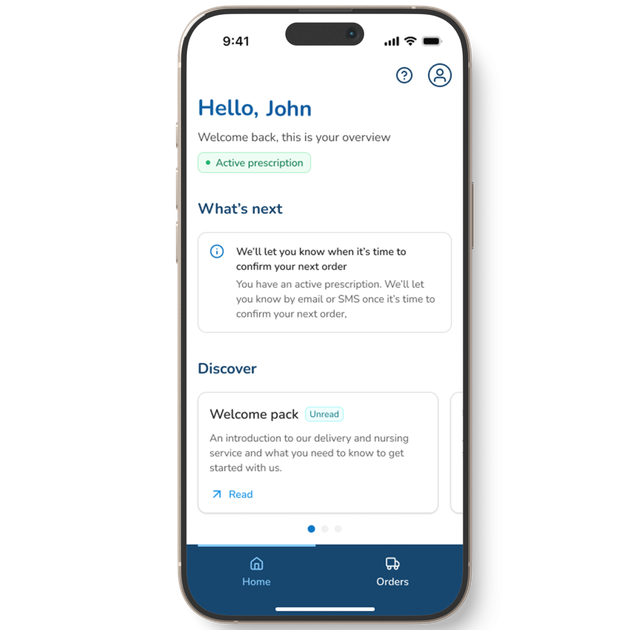
1. Streamlined Design
Enjoy a clean, modern layout that makes it quicker to find what you need. Navigation is smoother, pages load faster, and key actions are just a tap away.
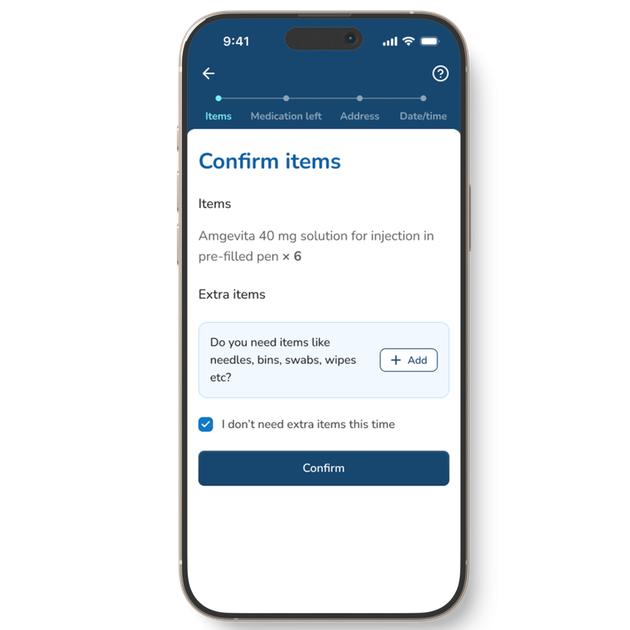
2. Clear, Step-by-Step Instructions
We’ve simplified every process with plain-language guides to help you easily order your medication—no guesswork or confusion.
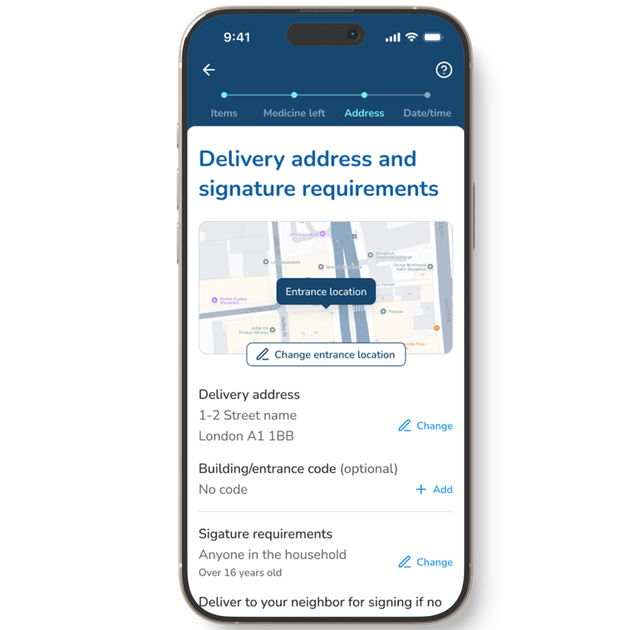
3. Smart Features
You can now update your personal details, view and amend nursing appointments, and check both your order and prescription status in real time, all within the app.
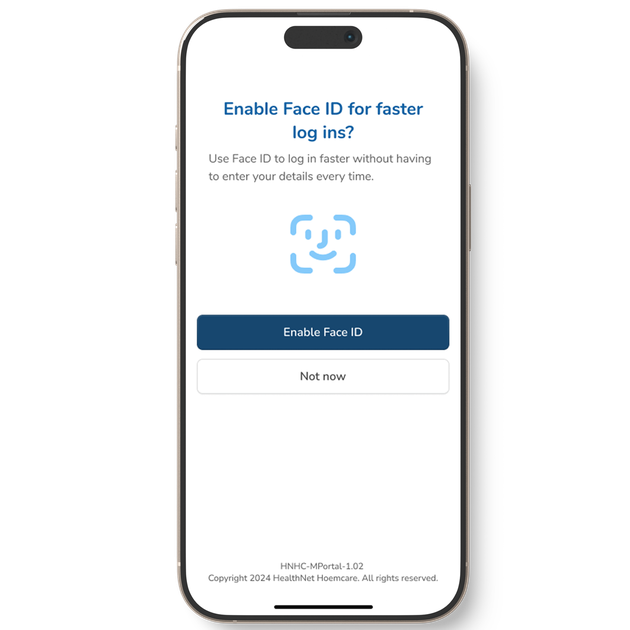
Ready To Experience The Update?
These improvements reflect our ongoing commitment to enhancing digital access and supporting medication adherence with tools that are clinically informed, secure, and easy to use.
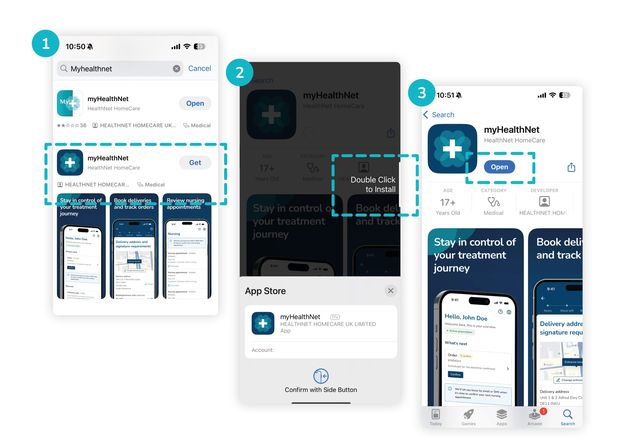
To get started on the ‘MyHealthNet’ app, simply delete the old version and download the latest one for free from the Google Play or Apple App Store.
The following example shows the layout of the Apple App Store; please note that the Google Play Store layout may differ slightly.
Type the app name into the Apple App Store or Google Play Store and download ‘myHealthNet‘.
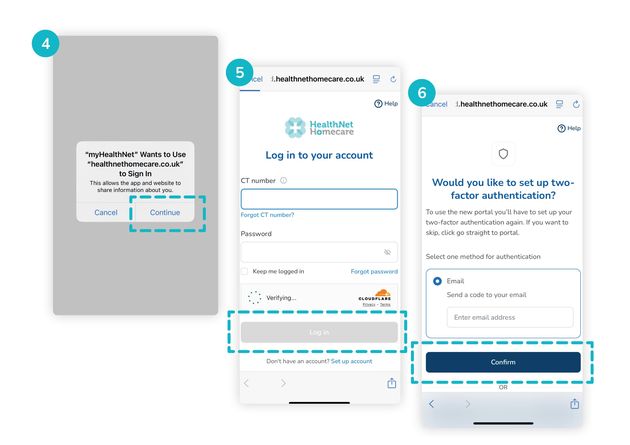
Once downloaded, open the app and fill out the following fields with your details.
If you’re unsure of your CT number, you can find it in previous correspondence from us.
Alternatively, feel free to contact the Patient Support Team on 0800 083 3060 or enquiries@healthnethomecare.co.uk.
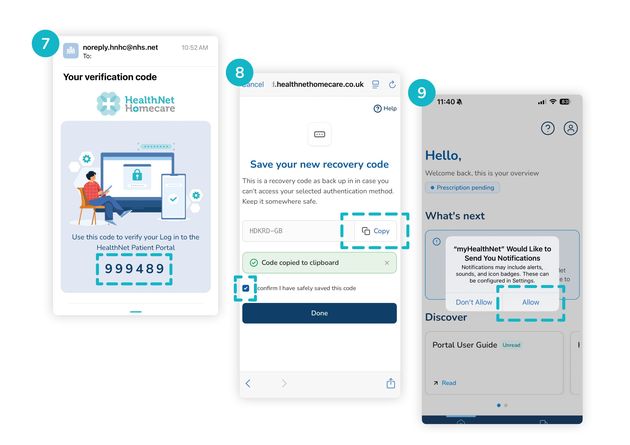
Once logged in, a verification code will be sent to your chosen email address.
Open your email inbox to locate this verification code. If you don’t see the email, please check your spam or junk folders.
Once you’ve copied the code or written it down, open the app and enter it into the designated field.
Here, you’ll be given a recovery code – keep a note of this incase you have issues accessing your account in the future!
You’re in!
Enjoy the new features of the app and enjoy a smoother, smarter way to stay on top of your health.